Everyone has had that cold little moment after pressing send. The attachment is wrong, the tone is sharper than intended, the client name is misspelled, or worst of all, the email has gone to someone who should never have seen it.
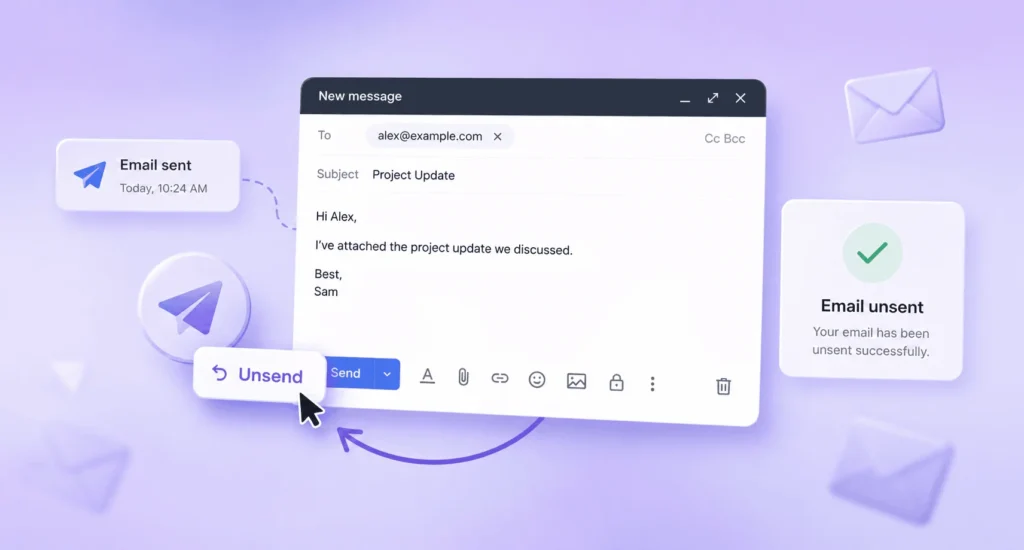
The uncomfortable truth is that “unsend” is not magic. Most email platforms give you a few seconds to stop a message before it leaves, but once the email has reached the recipient’s inbox, your options become limited. That is why the best answer is not just knowing where the undo button is. It is knowing what to do in the next 30 seconds, the next 10 minutes, and the next working day.
Key Takeaways
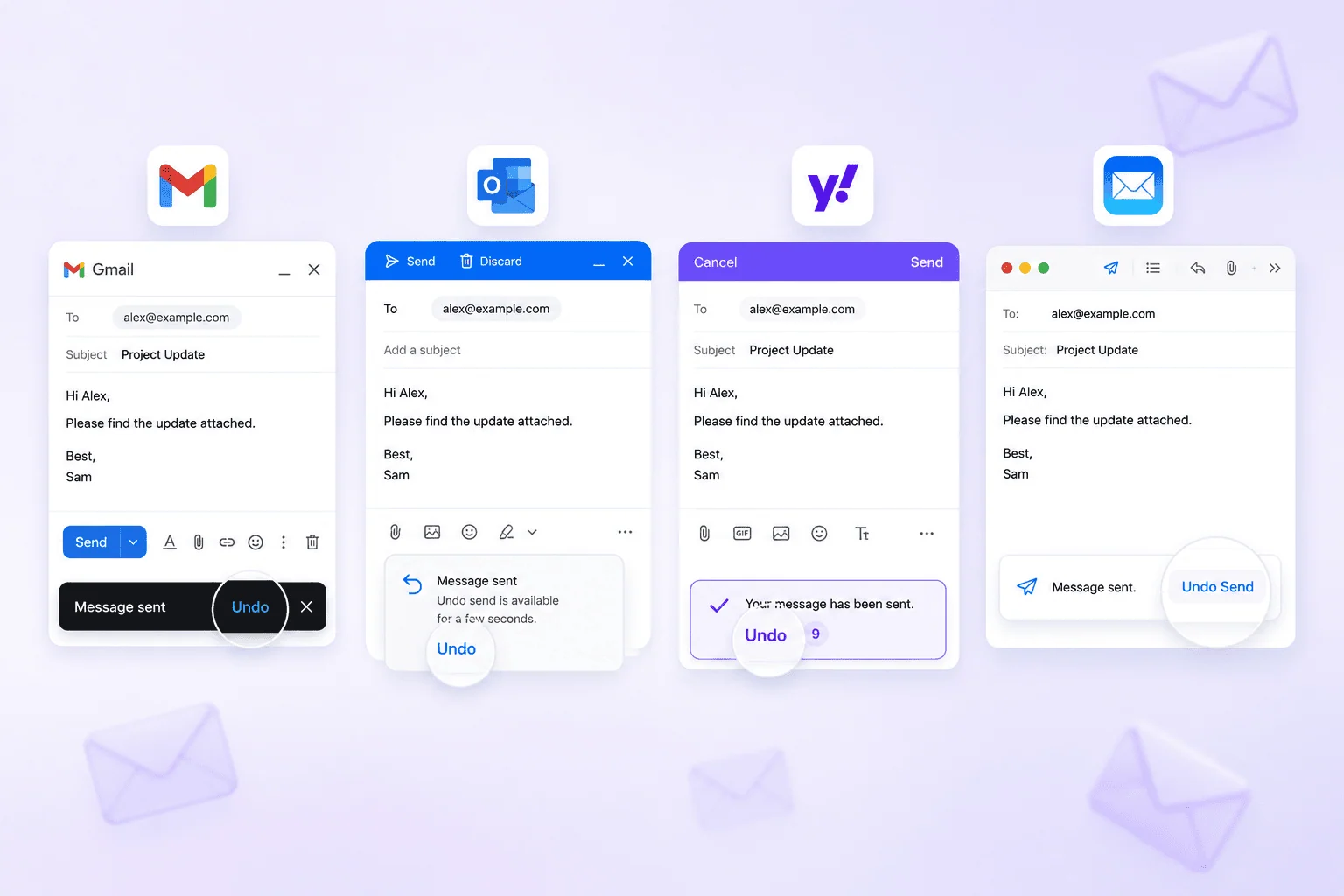
- “Unsend” usually means a short delay. Gmail and Apple Mail do not pull an email back from someone’s inbox. They give you a brief moment to cancel before the message fully sends.
- Gmail gives you up to 30 seconds. Set Gmail’s Undo Send cancellation period to 30 seconds so you have the longest possible window to catch mistakes.
- Outlook recall is useful, but limited. It mainly works in supported Microsoft 365 or Exchange environments, often inside the same organisation and only if the message is unread.
- Yahoo Mail cannot recall sent emails. Once a Yahoo email has been sent, you should assume it cannot be retrieved from the recipient’s inbox.
- Deleting a sent email does not delete it for the recipient. Removing an email from your Sent folder only affects your own mailbox.
- Sensitive data changes the response. If the email included customer, employee, financial or confidential data, treat it as a potential data protection issue and escalate quickly.
- Prevention beats panic. Use longer undo windows, clean contact data, approval workflows, attachment checks and careful segmentation before sending important emails.
Can You Really Unsend an Email?
You can only unsend an email if your email platform gives you a short cancellation window or recall feature. In Gmail and Apple Mail, this is usually a delay before the email is fully sent, while Outlook recall only works in specific Microsoft 365 or Exchange environments.
That distinction matters because many people imagine an email can be pulled back like a text message. In reality, once a normal email has reached another mail server, it is usually outside your control.
Think of “Undo Send” as a safety catch, not a time machine. It buys you a few seconds to spot a mistake, but it does not guarantee you can recover a message later.
Undo Send, Recall and Delete Are Not the Same Thing
Term | What it actually means | Does it remove the email from the recipient? |
Undo Send | Delays sending for a few seconds so you can cancel it | Yes, but only if you click undo before the delay ends |
Recall | Attempts to delete or replace an unread message | Sometimes, mainly in supported Outlook workplace setups |
Delete | Removes the email from your own sent folder | No, it only affects your mailbox |
This is where many users go wrong. Deleting a message from Sent Items may make you feel better, but it does not remove the email from the recipient’s inbox.
How to Unsend an Email in Gmail
In Gmail, you can unsend an email by clicking “Undo” immediately after sending, but only within the cancellation period you have set. Gmail lets users choose a send cancellation period of 5, 10, 20 or 30 seconds in settings.
After you send a Gmail message, look for the small “Message sent” notification. On desktop, it usually appears in the bottom-left corner. If you click “Undo” before the timer runs out, Gmail reopens the draft so you can edit it, delete it or send it again.
How to Increase the Gmail Undo Send Window
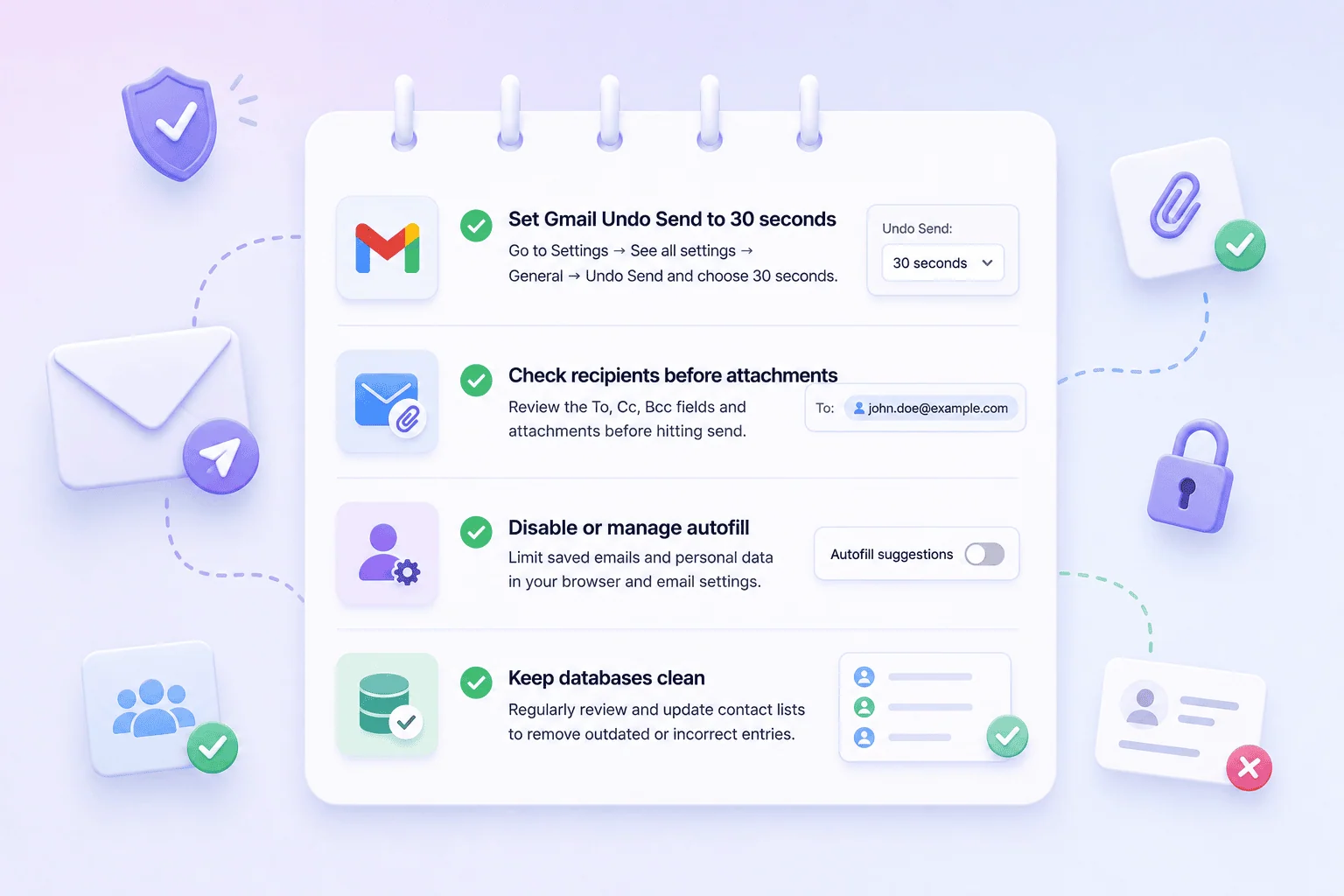
To give yourself the best chance of catching mistakes, set Gmail’s cancellation period to 30 seconds.
- Open Gmail on desktop.
- Click the gear icon in the top-right corner.
- Select “See all settings.”
- Under the “General” tab, find “Undo Send.”
- Choose 30 seconds as the send cancellation period.
- Scroll down and click “Save changes.”
This small setting is one of the easiest risk-reduction wins in email. Five seconds is barely enough time to notice a mistake, let alone react to it. Thirty seconds will not solve every problem, but it creates a useful pause between impulse and consequence.
Can You Unsend a Gmail Email After 30 Seconds?
You cannot recall a Gmail email after the undo window has passed. Once the message has been sent, Gmail does not provide a true recall feature that removes it from the recipient’s inbox.
That means the next step is not technical – it is practical. You need to assess the mistake, decide whether to send a correction, and if the message contained sensitive or personal data, escalate it properly.
How to Unsend an Email in Outlook
Outlook recall can remove or replace an email only in certain Microsoft 365 or Exchange setups, usually when both sender and recipient are in the same organisation, and the message has not been read. Microsoft’s own support explains that recall status can succeed, fail or remain pending depending on the recipient and environment.
Outlook is the platform most people associate with “recalling” an email, but it is also the one most misunderstood. Recall is not a universal delete button. It is a controlled workplace feature with conditions attached.
When Outlook Recall Is Most Likely to Work
Condition | Why it matters |
You and the recipient use Microsoft 365 or Exchange | Recall depends on the mail environment supporting it |
You are in the same organisation | External recipients often cannot be recalled |
The email is unread | Opened emails are much harder or impossible to retract |
The message has not been moved by rules | Inbox rules can interfere with recall |
You are using a supported Outlook version | Some personal or mobile setups do not offer recall |
Microsoft also notes that recall does not work for IMAP or POP accounts, and recall or replace is intended for situations where recipients are using Microsoft Exchange or Microsoft 365 in the same organisation.
How to Recall an Email in Outlook
In classic Outlook, the usual process is:
- Open your Sent Items folder.
- Double-click the email so it opens in a separate window.
- Go to the Message tab.
- Choose Actions, then Recall This Message.
- Select either “Delete unread copies” or “Delete unread copies and replace with a new message.”
- Confirm and check the recall report if available.
If you are using new Outlook or Outlook on the web, Microsoft advises opening the sent message and selecting “Recall Message” from the ribbon, then checking the message recall report when it arrives.
Should You Recall or Send a Correction?
If the email went to someone inside your organisation and it is likely unread, try recall immediately. If the email went to a client, supplier or external contact, a correction email is usually more realistic.
There is also a judgement call here. A recall attempt can draw attention to the mistake, especially if the recipient sees a recall notification. If the problem is a minor typo, a follow-up may cause more noise than the error itself. If the issue involves personal data, confidential documents or commercial risk, quiet embarrassment is not a good strategy.
How to Unsend an Email in Apple Mail
Apple Mail lets you unsend an email by using “Undo Send” shortly after sending, with an adjustable delay on supported devices. Apple explains that users can set an Undo Send Delay in Mail settings on iPhone and iPad.
Apple’s version of unsend works much like Gmail’s. The message is delayed briefly, giving you time to stop it before it fully leaves. Once that delay has passed, Apple Mail cannot reach into the recipient’s inbox and remove the message.
How to Use Undo Send on iPhone or iPad
After sending an email in Apple Mail, tap “Undo Send” as soon as it appears. The email will reopen as a draft, allowing you to fix the issue before sending again.
To adjust the delay on iPhone or iPad, go to Settings => Apps => Mail => Undo Send Delay. Apple’s guidance confirms this is where users choose the delay for outgoing messages.
Does Apple Mail Unsend Gmail or Outlook Emails?
Apple Mail is an email app, not necessarily your email provider. If you use a Gmail or Outlook account inside Apple Mail, the undo feature is still about delaying the send action in the app, not retrieving the message from another person’s inbox later.
This is a common source of confusion. The app you press send in and the email service behind the account are not always the same thing.
How to Unsend an Email in Yahoo Mail
Yahoo Mail does not let you recall an email once it has been sent. Yahoo’s own help guidance says sent emails cannot be recalled, so the safest approach is to pause before sending, save uncertain messages as drafts, and act quickly with a correction or deletion request if something has gone wrong.
Yahoo is different from Gmail, Outlook and Apple Mail because there is no reliable built-in recall function that removes a sent message from the recipient’s inbox. Once the email has gone, you should assume the recipient may be able to see it.
That does not make Yahoo unsafe, but it does make the habit around sending more important. The platform gives you fewer recovery options, so the protection has to happen before the message leaves.
What to Do If It Is Too Late to Unsend the Email
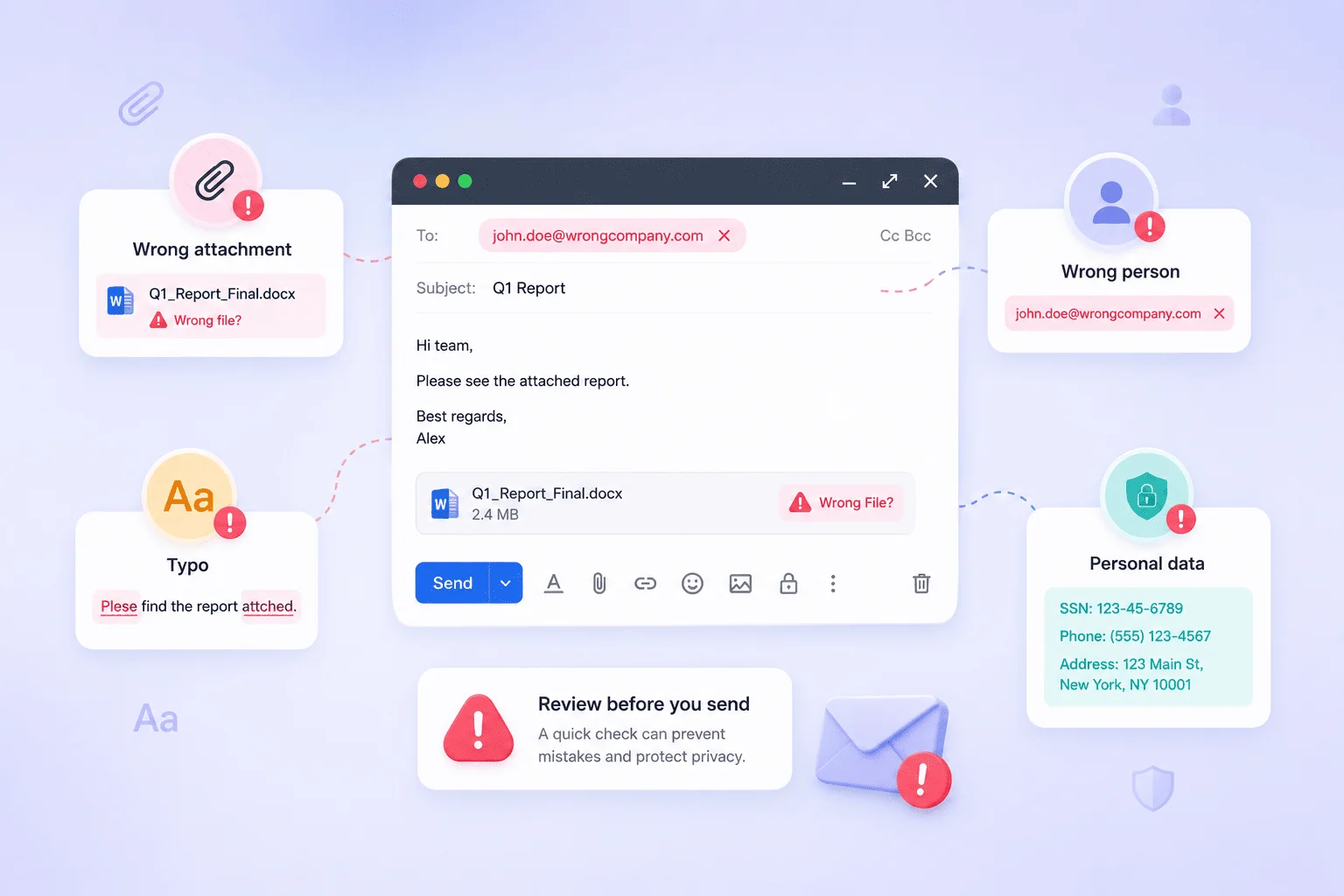
If the undo or recall window has passed, stop trying to find a secret button and focus on reducing harm. Check what was sent, who received it, whether it contained sensitive data, and whether you need to send a correction, request deletion or escalate the incident internally.
Question | Why it matters | Best next action |
Was it sent to the wrong person? | The recipient may now have information they should not have | Contact them quickly and ask them to delete it |
Was the attachment wrong? | Attachments often contain more risk than the email body | Check the contents before deciding next steps |
Did it include personal data? | This may create a data protection issue | Escalate internally and document what happened |
Was it a marketing email? | The mistake may have gone to many people | Pause related campaigns and assess the audience |
Was it only a typo? | Not every mistake needs a dramatic response | Send a correction only if clarity or reputation is affected |
The best response is calm, fast and proportionate. A misspelled word does not need an incident meeting. A spreadsheet of customer names sent to the wrong person might.
What If You Sent Personal Data to the Wrong Person?
If an email containing personal data is sent to the wrong person, it may be a personal data breach and should be handled quickly. The ICO advises organisations to try recalling the email, ask the unintended recipient to delete it if recall fails, and treat the 72 hours following a personal data breach as particularly critical.
This is where business email stops being an admin problem and becomes a compliance problem. Personal data can include names, addresses, phone numbers, email addresses, customer records, employee details, order histories, financial information and marketing lists.
What You Should Do First
Start by establishing exactly what happened. Identify the recipient, the data involved, the number of people affected, whether the email was opened, and whether the data can be recovered or deleted.
The ICO’s personal data breach guidance says that if data has been sent to someone by mistake, you could ask them to delete it, send it back securely or make it available for collection.
When to Escalate Internally
If the email involved customer data, employee data, financial information, health details or confidential client files, do not keep the mistake to yourself. Tell your manager, compliance lead, Data Protection Officer or whoever is responsible for data protection in your organisation.
This is not about blame – it is about containment. The longer a business waits to understand what has happened, the harder it becomes to recover the data, contact the recipient and decide whether further action is required.
How to Prevent Email Mistakes Before They Happen
The best way to handle a mistaken email is to make it less likely in the first place. Increase undo-send delays, use approval processes, clean your contact data, review attachments and create a culture where accuracy matters as much as speed.
Most email errors are not caused by lack of intelligence. They are caused by rushed workflows, messy data, unclear ownership and tools that make it too easy to send before thinking.
Practical Prevention Checklist
Prevention step | Best for | Why it helps |
Set Gmail Undo Send to 30 seconds | Everyday Gmail users | Gives you the longest available cancellation window |
Use Outlook delay delivery rules | Workplace email users | Adds thinking time before emails leave |
Check recipients before attachments | Everyone | Wrong-recipient errors are often the most serious |
Disable or manage autofill | Teams handling sensitive data | Reduces accidental recipient selection |
Use approval workflows | Marketing teams | Stops one person’s mistake becoming a campaign issue |
Keep databases clean | Sales and marketing teams | Reduces misdirected or irrelevant communication |
Separate test and live lists | Campaign managers | Prevents draft campaigns reaching real customers |
Train teams on data handling | Any organisation using personal data | Builds habits before incidents happen |
A useful rule is to slow down at the point of greatest risk. That might be before sending a customer file, before launching a campaign, before emailing a large group, or before attaching a spreadsheet.
Gmail vs Outlook vs Apple Mail vs Yahoo: Which Gives You the Best Chance?
Gmail and Apple Mail give you a short window to stop an email before it fully sends, Outlook offers recall in specific Microsoft 365 or Exchange conditions, and Yahoo Mail does not provide a true recall option once a message has been sent. The safest platform is not simply the one with the best button, but the one that supports the right sending habits for the risk involved.
Platform | Main feature | Typical limit | Works after the recipient opens it? | Best use case |
Gmail | Undo Send | Up to 30 seconds | No | Catching immediate mistakes before delivery completes |
Outlook | Recall Message | Conditional | Usually no | Internal Microsoft 365 or Exchange recall within an organisation |
Apple Mail | Undo Send | Short adjustable delay | No | Apple device users who notice mistakes quickly |
Yahoo Mail | No true recall after sending | Not available once sent | No | Users who rely on drafts, checks and quick correction emails |
Marketing platforms | Campaign controls and approval workflows | Platform dependent | Usually no | Preventing mistakes before a bulk campaign is broadcast |
The comparison shows a simple pattern. Gmail and Apple Mail help with small, instant regrets. Outlook can help in a controlled workplace environment. Yahoo gives you the least room for recovery, which makes careful drafting and recipient checking much more important.
What Should You Say After Sending the Wrong Email?
If you need to contact someone after sending the wrong email, keep the message short, specific and calm. Ask them to delete the email if necessary, send corrected information where appropriate, and avoid adding unnecessary detail that spreads the mistake further.
The worst follow-up email is the one that creates a second problem. Do not over-explain, do not forward the sensitive content again, and do not turn a small correction into a long apology unless the situation genuinely calls for it.
A good response usually includes four things:
- A clear acknowledgement that the previous email was sent in error.
- A simple instruction, such as deleting the message or ignoring an attachment.
- Corrected information if the recipient needs it.
- A calm closing that does not dramatise the mistake.
If personal data was involved, follow your organisation’s internal process rather than improvising. Compliance incidents need records, not just apologies.
How to Unsend an Email: Make the Next One Safer
You cannot build a reliable email process around regret. The better habit is to create small barriers before send: a 30-second undo window, cleaner data, recipient checks, approval steps and a clear rule for escalating anything involving personal data.
The most useful thing you can do after reading this article is not memorise every recall instruction. It is to change one setting and one habit today. Set your undo-send window to the maximum, then decide which emails in your work deserve a deliberate pause before they leave.
For individuals, that pause can prevent embarrassment. For businesses, it can prevent a client issue, a campaign error or a data protection incident.